Can Someone Find Your Address from Your Phone Number?
Can someone find your address from your phone number? Often, yes. Here's the public-record trail and how to check what yours shows.
Dating
Claire Kellerman
Aug 10, 2026 • 4 min read

Unblocking a number on iPhone takes about four seconds. Open Settings, navigate to Phone (iOS 18 or earlier) or Privacy & Security (iOS 26 and later), tap Blocked Contacts, find the number, swipe left, and tap Unblock. That's it.
If you want the full breakdown — all three methods, what happens to messages sent while the number was blocked, and how to make sure it's actually safe to call back — keep reading. Need to go the other direction? Here's how to block a number on iPhone, from iOS 18 to iOS 26.
You see him from your apartment window.
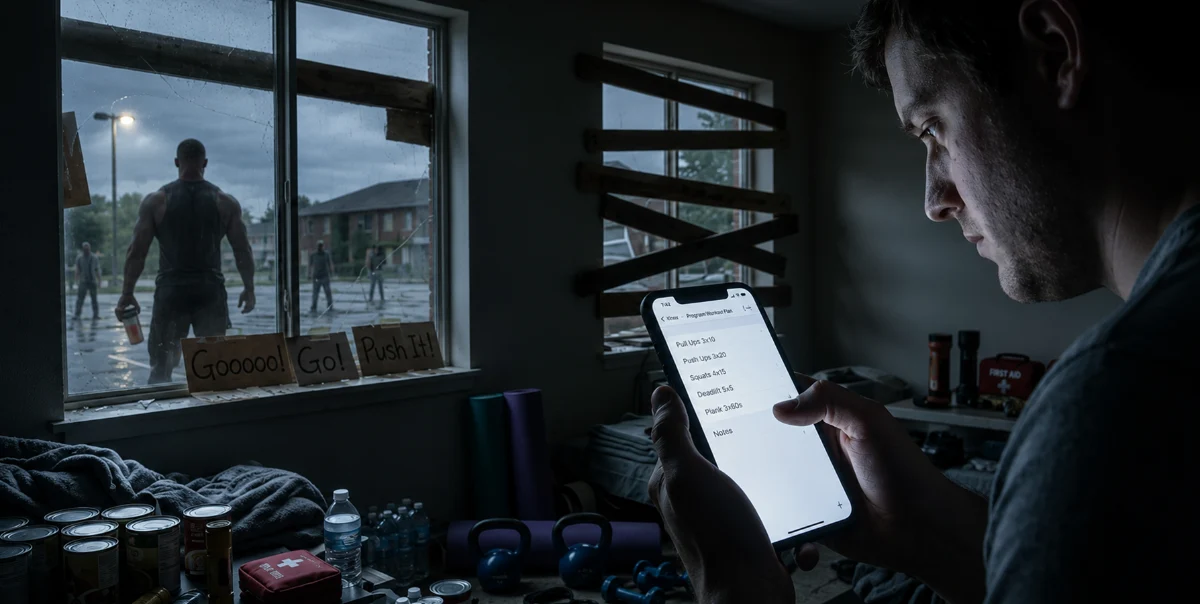
You're grief-eating a king-sized Toblerone for breakfast and you look down at the parking lot and there he is. It’s unmistakably him. Those shoulders. Those traps. Those scrumptious glutes. The particular way he stands like his body is genuinely offended by the concept of bad posture. Even now, eight months dead and technically a zombie, Knox is built like something assembled with expert precision.
His posture might be good, but he’s undeniably confused, just out there shuffling around. He keeps stopping and looking up at the building, then moving, then stopping again. He doesn't know which window is yours. He's been out there a while.
You realize three things at the same time.

One: Knox is back. Of course he’s back, because they’re all back. It’s the zombie-freaking-apocalypse.
Two: You blocked Knox’s number the day of his funeral, eight months ago, nearly a week after he’d died in a tragic leg-press accident. You were sitting in the parking lot of your local Planet Fitness, in your car, eating a gas station hot dog and sobbing. You blocked his number because seeing his name in your recent calls felt like a hand reaching out of a grave. Eight months ago that was a turn of phrase. Now, ever since the zombie apocalypse began, it is not.
Three: Knox has been trying to reach you.
Knox had been your trainer for two years. He has 12-inch biceps and killer calves and a jet ski he promised he would one day let you ride on the back of. He knew your body's weaknesses better than you did. Hell, he knew you better than you did. Knox was a good man. His abdominal muscles rippled like waves on the Aegean Sea.
Again, the problem is not that Knox is calling. The problem is you’ve blocked his number on your iPhone. Also, the problem is that you've been eating your feelings since the funeral and you haven't done so much as a single burpee in eight months and, let’s be blunt, you look like a whale – a whale that would love to swim in the rippling waves of, say, the Aegean Sea.
All of this is not to mention that FEMA, which is still somehow operational, bless them, has been very clear in their updated survival guidance: fitness is now a life skill, like fire-starting or water filtration or knowing which mushrooms won't kill you.
To survive, you need to get back in shape. But you blocked the only man who knows how to help you do that. He’s outside your window, but you can’t venture outside. The other zombies will eat your brains. They aren’t like dear, sweet, muscular, zombie Knox.
Here's how to fix your problem.
Unblocking a number on iPhone takes about four seconds.
Done. Knox can now reach you. You can now do something about the fact that you are not, by any measurable standard, prepared for what's outside your apartment window.
Not sure which iOS you're running? Go to Settings > General > About and look at the Software Version. For full official documentation, visit Apple's support page.

There is more than one way to do this, depending on where you are in your phone.
This works regardless of whether the number is saved as a contact or is just a raw string of digits sitting in your blocked list from a moment of emotional decision-making eight months ago, during a period when you could not have predicted that the dead would one day roam the Earth.
Swipe left. Tap Unblock. Done.
Open the Phone app and go to Recents. If the number appears there, tap the small i icon next to it. Scroll down and tap Unblock this Caller.
This method works if Knox has attempted to call recently and the attempt shows in your Recents. However, since you had him blocked, calls won't have rung through, and this may not appear. Use Method 1 if you can't find it here.
If Knox is saved in your contacts – and he is, you know he is, you kept meaning to delete it and you never could – open the Contacts app, find him, scroll to the bottom of his card, and tap Unblock this Caller.
This is the hardest method emotionally. The contact card has his photo. He's grinning on his jet ski. It has notes you added when you first started training together: Wednesday 6am. No excuses. Leg day, followed by one protein shake with two straws.
You'll be okay. Tap Unblock. Then call Knox.
A few things worth knowing before you tap that button, including one that matters a great deal given current circumstances.
Knox will not receive a notification that he was blocked, or that he has now been unblocked.
Any messages sent while he was blocked are gone. According to Apple, blocked callers can still leave voicemails, but you won't receive a notification. Instead they go to a separate “Blocked Messages” section of your voicemail inbox. Check there before you do anything else. Knox may have left instructions. Given that the apocalypse has been ongoing for several weeks, those instructions may be time-sensitive.
Once you unblock the number, calls and texts will come through normally. Your phone will ring. The decision about what happens next is yours.
Here's the part of the zombie apocalypse nobody put in the preparedness guides: phone numbers get reassigned.
It happens constantly, even in normal, un-apocalyptic times. Someone stops paying their bill, the carrier recycles the number, and a stranger inherits it. Ordinarily, the consequence is an awkward conversation. In current times, the consequences of getting this wrong are significantly more severe, because not everyone wandering around out there is Knox, and not everyone is looking to help you with your lateral lunges.
Remember, Knox's number has been sitting in your blocked list for eight months. Cell networks have been spotty, despite carriers doing their best under circumstances that were not covered in their business continuity planning. There is a real possibility that the number, if you call it, belongs to someone who found Knox's phone. Or found Knox's phone on Knox, if you follow the implication.
That could be a survivor. It could be another, more ill-intentioned zombie – one looking to eat your glutes, not sculpt them. That could be dangerous.
So before you call back, be sure to verify the number is still associated with Knox.
A reverse phone lookup through ClarityCheck may surface publicly available information tied to that number, including name associations, carrier details, any recent activity that can help you confirm who's actually on the other end. This takes about thirty seconds. For more on phone-based fraud, you can also check out our guide on FBI-flagged phone scams.
Knox, if it's really him, will wait. He's been waiting. He has all the time in the world. He's out there right now, wandering a parking lot in the grey morning light, trying to get other zombies to work out with him.
Thirty seconds. Run the number with a reverse phone lookup. Protect yourself
Let's set the zombie apocalypse aside for a moment.
You blocked Knox because grief made the sight of his name unbearable. That's not irrational. A lot of people block numbers for a multitude of valid-yet-private reasons. They sometimes also decide to unblock them.
Just like blocking someone on iPhone, the unblocking process takes a few seconds. The decision to do it is however long it takes you to decide.
If the reason you blocked the number was simpler than that of Knox – an argument, a bad breakup, a phase of life that's now over – the calculus is easier. You can simply unblock it and see what happens. You can always block it again. The blocked list is not a permanent record.

Changed your mind? Did the thought of another kettlebell workout with Knox screaming encouragement in your ear with zombie breath terrify you more than the idea of the zombie apocalypse itself? Completely valid. Take out your iPhone and re-block that zombie.
Now that zombie is blocked. Just like your six-pack. Sorry Knox (and your chances of surviving the zombie apocalypse).
Can someone find your address from your phone number? Often, yes. Here's the public-record trail and how to check what yours shows.